
 Upgrade Storage
& # 3 8 ; (without spaces) gets inserted into Word APA citations, why?
I have to manually change each "& # 3 8 ;" (no spaces) to "&" and then refresh Zotero and tell it to ignore my every such change. Why is this happening? I understand that it is a code in HTML that just means "&", but why is my MS Word writing it out literally?
I'm working on a dissertation, heavily referenced with dual authors, so this is moderately annoying. I'll look at the 'Word Processor Integration' thread as suggested, but I'm wondering if others have had this exact issue and can point me to an exact and quick fix. Is it a glitch in Zotero or some issue with how I have set up my Word?
https://s3.amazonaws.com/zotero.org/images/forums/u2923610/5l55uugkeh5b0tbn7cbw.jpg
I'm working on a dissertation, heavily referenced with dual authors, so this is moderately annoying. I'll look at the 'Word Processor Integration' thread as suggested, but I'm wondering if others have had this exact issue and can point me to an exact and quick fix. Is it a glitch in Zotero or some issue with how I have set up my Word?
https://s3.amazonaws.com/zotero.org/images/forums/u2923610/5l55uugkeh5b0tbn7cbw.jpg
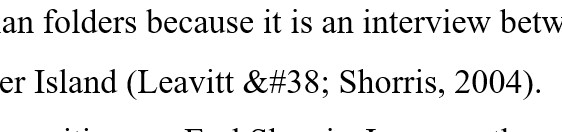
Which version of Zotero and Word are you using?
Microsoft® Word for Microsoft 365 MSO (Version 2605 Build 16.0.20026.20182) 64-bit
Zotero version:
10.0-beta.7+982c00aaf (64-bit)
No updates found for Zotero.
I just asked for an update which is loading in the background. I had thought that it auto-updated, but maybe it didn't have the exact latest update? I'll update Word, restart my computer after update, open Zotero fresh, and see if the issue replicates.
I do have my paste in word set to default to remove all formatting and just paste text only. I don't know if that could somehow be causing Zotero to paste in without interpreting the & code properly, but literally just "pasting" in the text?
The default to text only setting shouldn't affect this, no, but helpful as context.
I updated Word, restarted my computer, opened Zotero fresh, and refreshed by document. All looked correct again. Gosh, when I checked my bibliography, it was full of HTML code! After a Zotero refresh on the updated Word, it all came right. I put in a fresh citation with & and it rendered correctly! Thanks for the tip about downloading the latest Word. Strange, because I double-checked and it states that it is set to auto-update...
Yes, I'm using the Zotero Word add-in. And correct, I would not think there would be a difference based on my paste setting. I did notice that previously, it was adding in the citations in a different font than my document. I was using Times New Roman, and it inserted things in some more simple font, like Arial, or some such.
I have this version, no more updates possible, so the latest:
Microsoft® Word for Microsoft 365 MSO (Version 2606 Build 16.0.20131.20086) 64-bit
That seemed to have straightened it out. Thank God!
https://s3.amazonaws.com/zotero.org/images/forums/u2923610/m7ypx03y9y56pv5yif6t.png
One more question. Why does Zotero insist on formatting my APA bibliography in Arial(body) 11pt font (my paper is in Times New Romans 12pt)?
I changed the bibliography to Times New Roman 12, and the Zotero refresh changed it back. I would have expected it to default to the document setting for font, not impose it's own. Is there a way to specify Times 12pt for Zotero?
I mean, it's not a big deal, I can just change it to Times before printing. Just one more detail thing to have to remember to do for my dissertation.
It does pick a font that APA 7 recommend, but it is not the one that I am using.
FYI:
APA 7 does not mandate a single font, but it provides a list of recommended, highly legible fonts. You must use the same font consistently throughout your entire paper, including headings.
The official APA Style Typography Guidelines recommend the following options:
Sans-Serif Fonts:
11-point Calibri
11-point Arial
10-point Lucida Sans Unicode
12-point Aptos
Serif Fonts:
12-point Times New Roman
11-point Georgia
10-point Computer Modern (the default for LaTeX)
Exceptions to the Rule:
Figures: Within images, use a sans-serif font between 8 and 14 points.
Footnotes: Use your word processor's default font settings, which may be smaller than the main text.
I solved that one too. I had to make the change in Word Styles. Easy.
- In Microsoft WordClick anywhere inside your bibliography.
- Go to the Home tab at the top of the window.
- In the Styles pane (right-click the "Bibliography" or "Normal" style to reveal this), locate the Bibliography style.
- Right-click the Bibliography style and select Modify.
- Select your desired font, size, and color, then click OK.