
 Upgrade Storage
[Plugin] Mktero - Read Zotero PDFs as Markdown with MinerU
Hi everyone,
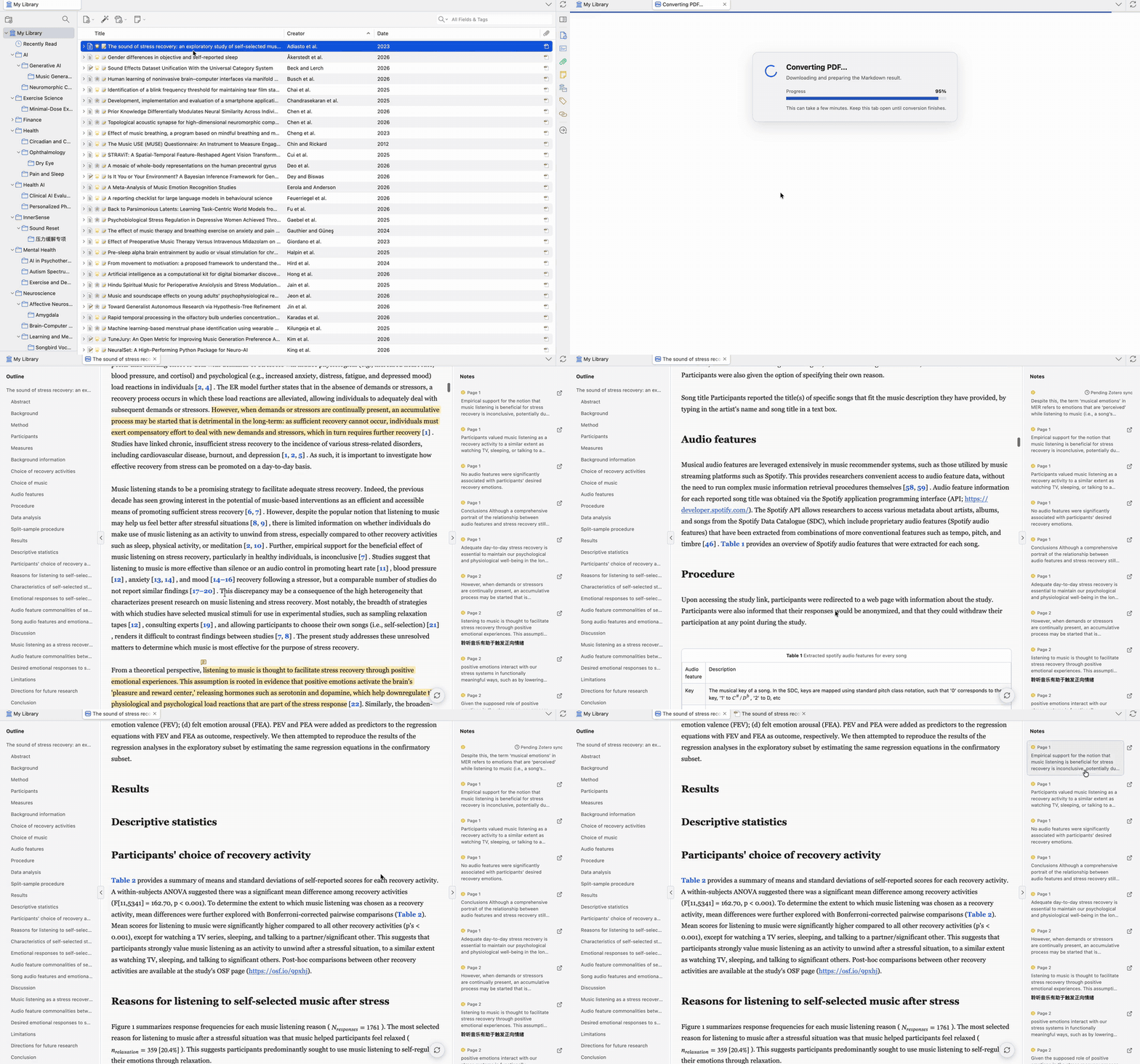
I have been working on Mktero, a Zotero plugin that converts local PDF attachments into Markdown with MinerU and displays the result in a read-only Zotero tab.
Mktero is intended for papers that are difficult to read in their original fixed-page layout, especially documents containing formulas, tables, figures, and academic references.
https://s3.amazonaws.com/zotero.org/images/forums/u6733192/ns61to6e5gyl281o1a1n.gif
## Main features
- Convert local Zotero PDF attachments with the MinerU VLM parser
- Read the converted document directly in a temporary Zotero tab
- Render headings, paragraphs, lists, formulas, tables, figures, code blocks, and academic references
- Generate a navigable table of contents
- Preview references, figures, and tables on hover
- Click references and figure/table citations to jump to their targets
- Open figures in a full-screen image viewer with zoom and pan
- Display existing Zotero PDF highlights and underline annotations in the Markdown view
- Create highlights and notes from selected Markdown text
- Synchronize supported Markdown annotations back to Zotero PDF annotations
- Reuse locally cached Markdown and images to avoid converting the same PDF repeatedly
- Resume an uploaded MinerU conversion without uploading the PDF again
- English and Simplified Chinese interfaces
- Support Zotero 7, 8, and 9
## Installation
1. Download the latest `mktero-.xpi` file from:
https://github.com/tenglvjun/mktero/releases/latest
2. In Zotero, open `Tools -> Plugins`.
3. Click the gear button in the upper-right corner.
4. Select `Install Add-on From File...`.
5. Choose the downloaded XPI file and follow Zotero's prompts.
The current release is v0.2.3.
## Configuration
Mktero currently uses the MinerU API for PDF conversion, so a MinerU API token is required when a document is not already available in the local cache.
You can create or manage a token here:
https://mineru.net/apiManage/token
After installing Mktero, open `Settings -> Mktero` and enter the token.
## Usage
You can open a document in either of these ways:
- Open a PDF in Zotero and click the file icon in the PDF reader toolbar.
- Right-click a PDF attachment, or an item containing a PDF attachment, and select `Read as Markdown with Mktero`.
Mktero will open a temporary tab and show the upload, parsing, and download progress. If the same PDF and parser configuration are already cached, it will open the local result without uploading the PDF again.
## Privacy and data handling
When there is no cached result, Mktero uploads the complete PDF to MinerU for processing.
The MinerU API token is stored as an unencrypted preference in the local Zotero profile. Converted Markdown and images are also cached locally and are not encrypted or synchronized through Zotero.
Zotero annotations are read from the local Zotero library and are not sent to MinerU. Annotation content is not included in the Mktero Markdown cache.
Please avoid processing confidential or sensitive PDFs unless uploading them to MinerU is acceptable under your institution's policies.
## Current limitations
- Only local PDF attachments are supported.
- The Markdown document itself is read-only.
- MinerU OCR or layout analysis may occasionally produce incorrect text, formulas, tables, or paragraph breaks.
- Some Zotero annotations cannot be matched reliably when the PDF text layer and MinerU output differ.
- Image, area, handwritten, and standalone note annotations are not currently displayed in the Markdown view.
- Creating a Markdown annotation requires the selected text to be located reliably in the PDF before it can be synchronized.
- File size, page limits, service availability, and account quotas are determined by MinerU.
## Feedback wanted
This is still an early release, and I would especially appreciate feedback about:
- Installation problems
- Zotero 7, 8, or 9 compatibility
- PDFs that fail to convert
- MinerU token or network errors
- Formula, table, figure, or reference rendering
- Annotation synchronization
- The clarity of the first-use experience
- Features that would make Markdown-based reading more useful
When reporting a problem, please include your Zotero version, operating system, Mktero version, and the conversion stage where the problem occurred. Please do not post API tokens or private PDF content.
Source code, installation instructions, privacy details, and issue tracking are available here:
https://github.com/tenglvjun/mktero
Bug reports and feature requests:
https://github.com/tenglvjun/mktero/issues
Mktero is open source under the MIT License.
Thank you for trying it. I would be interested to hear whether this reading workflow is useful and where the current experience causes friction.
I have been working on Mktero, a Zotero plugin that converts local PDF attachments into Markdown with MinerU and displays the result in a read-only Zotero tab.
Mktero is intended for papers that are difficult to read in their original fixed-page layout, especially documents containing formulas, tables, figures, and academic references.
https://s3.amazonaws.com/zotero.org/images/forums/u6733192/ns61to6e5gyl281o1a1n.gif
## Main features
- Convert local Zotero PDF attachments with the MinerU VLM parser
- Read the converted document directly in a temporary Zotero tab
- Render headings, paragraphs, lists, formulas, tables, figures, code blocks, and academic references
- Generate a navigable table of contents
- Preview references, figures, and tables on hover
- Click references and figure/table citations to jump to their targets
- Open figures in a full-screen image viewer with zoom and pan
- Display existing Zotero PDF highlights and underline annotations in the Markdown view
- Create highlights and notes from selected Markdown text
- Synchronize supported Markdown annotations back to Zotero PDF annotations
- Reuse locally cached Markdown and images to avoid converting the same PDF repeatedly
- Resume an uploaded MinerU conversion without uploading the PDF again
- English and Simplified Chinese interfaces
- Support Zotero 7, 8, and 9
## Installation
1. Download the latest `mktero-.xpi` file from:
https://github.com/tenglvjun/mktero/releases/latest
2. In Zotero, open `Tools -> Plugins`.
3. Click the gear button in the upper-right corner.
4. Select `Install Add-on From File...`.
5. Choose the downloaded XPI file and follow Zotero's prompts.
The current release is v0.2.3.
## Configuration
Mktero currently uses the MinerU API for PDF conversion, so a MinerU API token is required when a document is not already available in the local cache.
You can create or manage a token here:
https://mineru.net/apiManage/token
After installing Mktero, open `Settings -> Mktero` and enter the token.
## Usage
You can open a document in either of these ways:
- Open a PDF in Zotero and click the file icon in the PDF reader toolbar.
- Right-click a PDF attachment, or an item containing a PDF attachment, and select `Read as Markdown with Mktero`.
Mktero will open a temporary tab and show the upload, parsing, and download progress. If the same PDF and parser configuration are already cached, it will open the local result without uploading the PDF again.
## Privacy and data handling
When there is no cached result, Mktero uploads the complete PDF to MinerU for processing.
The MinerU API token is stored as an unencrypted preference in the local Zotero profile. Converted Markdown and images are also cached locally and are not encrypted or synchronized through Zotero.
Zotero annotations are read from the local Zotero library and are not sent to MinerU. Annotation content is not included in the Mktero Markdown cache.
Please avoid processing confidential or sensitive PDFs unless uploading them to MinerU is acceptable under your institution's policies.
## Current limitations
- Only local PDF attachments are supported.
- The Markdown document itself is read-only.
- MinerU OCR or layout analysis may occasionally produce incorrect text, formulas, tables, or paragraph breaks.
- Some Zotero annotations cannot be matched reliably when the PDF text layer and MinerU output differ.
- Image, area, handwritten, and standalone note annotations are not currently displayed in the Markdown view.
- Creating a Markdown annotation requires the selected text to be located reliably in the PDF before it can be synchronized.
- File size, page limits, service availability, and account quotas are determined by MinerU.
## Feedback wanted
This is still an early release, and I would especially appreciate feedback about:
- Installation problems
- Zotero 7, 8, or 9 compatibility
- PDFs that fail to convert
- MinerU token or network errors
- Formula, table, figure, or reference rendering
- Annotation synchronization
- The clarity of the first-use experience
- Features that would make Markdown-based reading more useful
When reporting a problem, please include your Zotero version, operating system, Mktero version, and the conversion stage where the problem occurred. Please do not post API tokens or private PDF content.
Source code, installation instructions, privacy details, and issue tracking are available here:
https://github.com/tenglvjun/mktero
Bug reports and feature requests:
https://github.com/tenglvjun/mktero/issues
Mktero is open source under the MIT License.
Thank you for trying it. I would be interested to hear whether this reading workflow is useful and where the current experience causes friction.