
 Upgrade Storage
Switching between stored and linked files to annotate pdfs on iPad
Hi there,
New to Zotero and struggling a little to get my head around all the technical details.
AIM: to annotate pdfs on my iPad in Zotero, whilst relying on OneDrive for storage as much as possible.
I have read:
- this post to set up linked attachments: https://peterfalkingham.com/2025/04/15/setting-up-zotero-with-onedrive-dropbox-google-drive-etc/
- this forum post to troubleshoot that process: https://forums.zotero.org/discussion/124455/one-drive-and-zotero-sync
- this forum post to learn that linked files don't work on iOS: https://forums.zotero.org/discussion/119351/ipad-zotero-pdf/p1
I have succeeded in:
- setting up Zotmoov for linked attachments
- confirming that new files are getting added to the relevant OneDrive folder
- switching a linked file to a stored file so it appears on my iPad ready to annotate
I am struggling to figure out:
(a) how to turn a stored file back into a linked file once I am done annotating (to save on storage)
(b) avoiding duplication of files in two cases:
(i) a lot of the pdfs I'm working from are downloads and attachments from courses where I have to manually drag them into Zotero rather than being able to save in browser. Zotmoov copies them to the new linked file location but it doesn't seem to delete the old one - is this possible?
(ii) duplicating between linked and stored files - I only want to use stored files occasionally to allow me to access them on my iPad, but even after setting up Zotmoov and linked files
Here are my settings.
Questions:
- How do I tell it to only store files that are not linked?
- How do I tell it to link files that I added and annotated before setting up Zotmoov?
- Do I need to toggle this file syncing option at some point?
https://s3.amazonaws.com/zotero.org/images/forums/u18851084/bf8qlfkol6kux2z0lpc0.png
I saw on the forum post about using iOS with linked files the sentence "When you want to move attachment files back to your linked file folder, use zotmoov" but I can't figure out how!
Thank you :)
New to Zotero and struggling a little to get my head around all the technical details.
AIM: to annotate pdfs on my iPad in Zotero, whilst relying on OneDrive for storage as much as possible.
I have read:
- this post to set up linked attachments: https://peterfalkingham.com/2025/04/15/setting-up-zotero-with-onedrive-dropbox-google-drive-etc/
- this forum post to troubleshoot that process: https://forums.zotero.org/discussion/124455/one-drive-and-zotero-sync
- this forum post to learn that linked files don't work on iOS: https://forums.zotero.org/discussion/119351/ipad-zotero-pdf/p1
I have succeeded in:
- setting up Zotmoov for linked attachments
- confirming that new files are getting added to the relevant OneDrive folder
- switching a linked file to a stored file so it appears on my iPad ready to annotate
I am struggling to figure out:
(a) how to turn a stored file back into a linked file once I am done annotating (to save on storage)
(b) avoiding duplication of files in two cases:
(i) a lot of the pdfs I'm working from are downloads and attachments from courses where I have to manually drag them into Zotero rather than being able to save in browser. Zotmoov copies them to the new linked file location but it doesn't seem to delete the old one - is this possible?
(ii) duplicating between linked and stored files - I only want to use stored files occasionally to allow me to access them on my iPad, but even after setting up Zotmoov and linked files
Here are my settings.
Questions:
- How do I tell it to only store files that are not linked?
- How do I tell it to link files that I added and annotated before setting up Zotmoov?
- Do I need to toggle this file syncing option at some point?
https://s3.amazonaws.com/zotero.org/images/forums/u18851084/bf8qlfkol6kux2z0lpc0.png
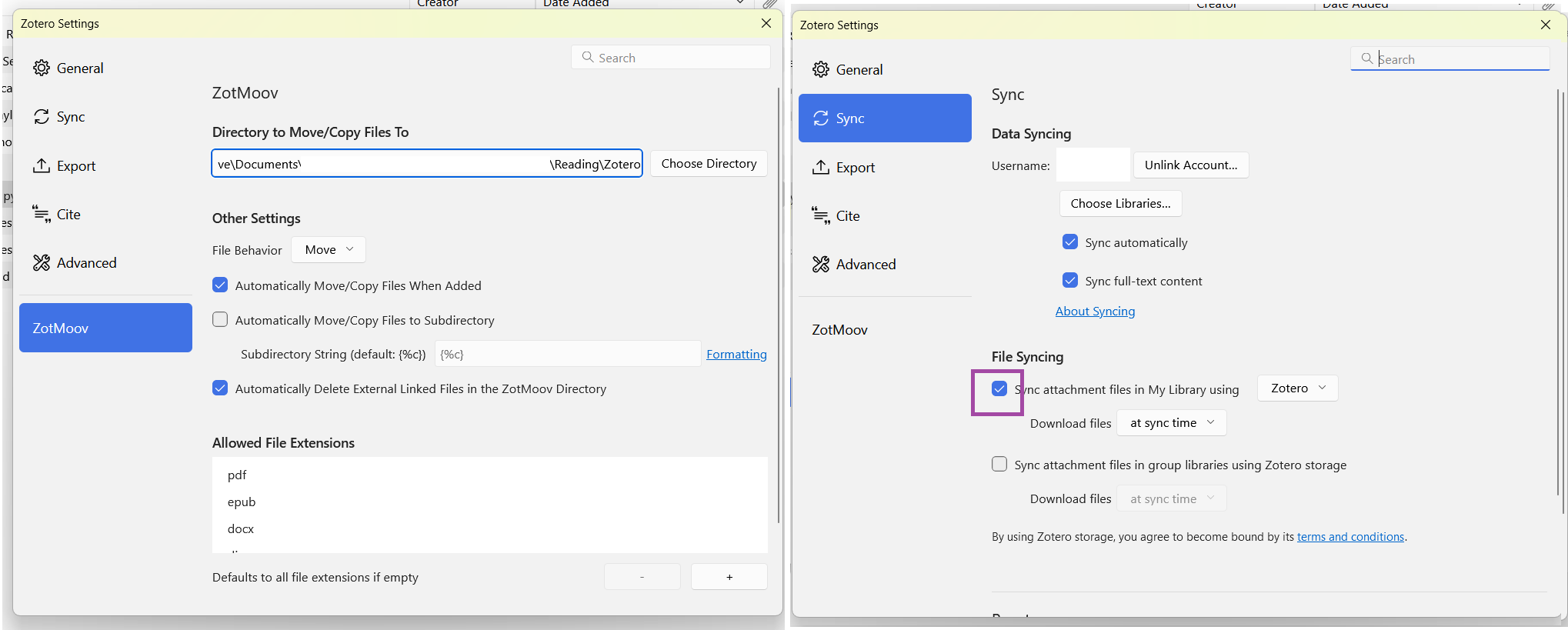
I saw on the forum post about using iOS with linked files the sentence "When you want to move attachment files back to your linked file folder, use zotmoov" but I can't figure out how!
Thank you :)
Re your questions ...
(a) Zotmoov can be set up with a custom menu option to move temporarily-"stored" files back to linked files after mobile use (the opposite of the custom menu option that moves linked files temporarily back into Zotero storage, to make them accessible in the mobile app ... which you may not have found either ?).
Instructions for the Custom Menu are linked from the main Zotmoov docs here:
https://github.com/wileyyugioh/zotmoov/blob/master/docs/SETTINGS_INFO.md
(b) (i) Zotmoov is not involved in file drags into Zotero (AFAIK) - that's default Zotero behaviour ... to make a copy. To get Zotero to add a PDF as a linked file (remaining at its current location) rather than copy it (as a stored file), you hold down a modifier key when dragging, as described under Adding Linked Files here ...
https://www.zotero.org/support/attaching_files#adding_files_via_the_zotero_window
You can also add *single* linked files by downloading them to Zotmoov's Attach New File folder (the associated right-click option then moves the latest-dated file into your "Move To" linked-files folder).
For any *existing* stored file(s) that you want to move as linked files to your "Move To" folder, use right click Zotmoov: Move Selected to Directory.
In order for a file you move into local Zotero storage to be accessible in the mobile app, it must be synced via Zotero servers. So file syncing must be ON (and you must have sufficient space in your online file storage quota). Since linked files don't use Zotero syncing, I guess you could turn it OFF when you're not wanting to get files to the mobile app, but you might as well leave it ON. Note that other files like HTML Snapshots downloaded by the Web Connector will go into local storage (and can fill up your file storage quota if you're not careful), unless you tell Zotmoov otherwise (via Allowed File Extensions).
I actually didn't need to set up my own custom menu items to do this, they were already there when I right-clicked on the relevant files, and I was able to select multiple too.
In case anyone else stumbles across this thread looking for the same thing:
- Move TO directory = make it a linked file, using personal storage (OneDrive in my case), no longer available on iOS
- Move FROM directory = make it a stored file, uses Zotero storage and becomes available on iOS
https://s3.amazonaws.com/zotero.org/images/forums/u18851084/pnbpdt4grcy9zq7t0a4n.png
I've managed to test out going back and forth and see all my annotations on my test files preserved - massive relief.
Still experimenting with (b) but gonna pause and actually do some of my reading before I do more messing with systems...
Setting up Zotmoov's Custom Menus options for those operations just allows you to add some extra operations to those stock menu items, eg to tag linked items that are being moved back into local storage so that they can be accessed in the Zotero mobile apps. That's one way to keep track of them.
You could also set up a collection for keeping track of such items. Drag/copy them into that collection when you are going to move them (via Zotmoov) into local storage/mobile access. And then remove them from the collection when you've finished with them on mobile and have moved them back into linked storage.
To avoid confusion, the particular examples shown in Zotmoov's Custom Menu documentation are for people wanting to do the opposite - they have their PDFs in local storage but want to access them in an *external* PDF reader on mobile devices. That was what Zotfile's old Send/Get From Tablet used to do, in the days before Zotero's internal PDF reader and the Zotero mobile apps. So the PDF is moved into linked storage, in a cloud folder that is mirrored on their mobile device. And then if they wish, annotations embedded in the PDF by the external reader can be extracted into a note afterwards, when the PDF comes back into local Zotero storage.
https://github.com/wileyyugioh/zotmoov/blob/master/docs/CUSTOM_MENUITEM_INFO.md